Connecting Application Logic and the User Interface
Our application could already function as a kind of Todo list. However, let's recall the features we planned at the beginning of this part:
- The user can add a new task.
- The user can see a list of all tasks.
- The user can mark a task as completed.
- The user can delete a task.
- The user can restore a completed task back to an unfinished state.
- Tasks are saved to a file so that they persist after the application is closed.
- Tasks are loaded from a file when the application starts.
Considering these requirements, our application is not yet very usable: tasks can be added and we can see all tasks, but tasks cannot be deleted or marked as completed.
Let's modify the user interface so that tasks are displayed as checkboxes, allowing them to be marked as completed or incomplete. In addition, completed and incomplete tasks will be displayed in separate lists.
Let's draw a preliminary wireframe design:
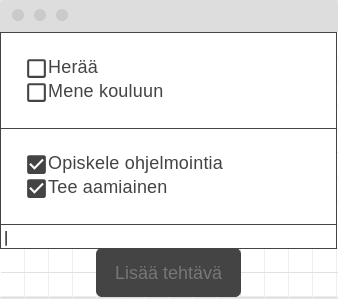
The figure above was drawn using the
wireframe.cc(https://wireframe.cc/Mq98ie)
service, but similar design mockups can be created using any drawing tool. In general, it is a good idea to plan user interfaces a little in advance so that implementation becomes more straightforward.
Creating Components Dynamically
Let's begin by modifying the button so that a new task is added to the user interface as a checkbox, that is, a CheckBox component.
Since users may add an unlimited number of tasks, we cannot create all checkboxes through SceneBuilder. Instead, we create components directly in the controller code.
First, let's prepare the user interface.
Open SceneBuilder and remove the existing Label component.
Since the label has no default text, it cannot easily be selected in the design view. Instead, select it using the Hierarchy panel in the Document view.
Delete the label by pressing Delete (macOS: ⌫ delete). You will receive the warning: "This component has an fx:id. Do you really want to delete it?" This indicates that the label component is used in the controller code. Choose Delete.
Next, locate a VBox component in the Library view:
Library → Containers → VBox
and drag it above the text field.
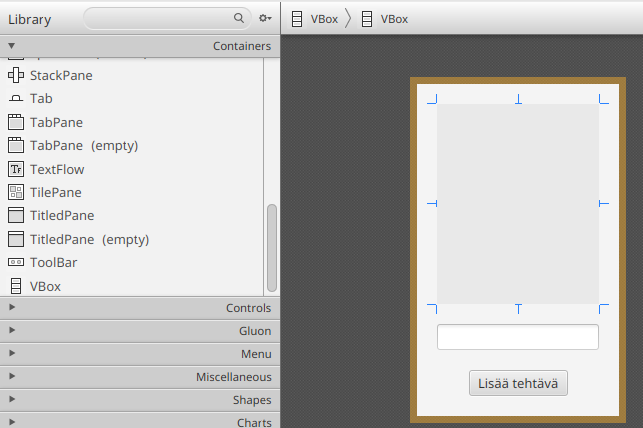
VBox (Vertical Box) is a container component intended for grouping and arranging other components.
Container components can hold other elements and arrange them according to their own rules.
For example, VBox arranges all components it contains vertically from top to bottom.
Assign the new VBox the fx:id:
pendingTasks
using the same identifier as the deleted label.
Save the FXML file and then modify the MainController class so that the type of pendingTasks becomes VBox:
// HIGHLIGHT_RED_BEGIN
@FXML
private Label pendingTasks;
// HIGHLIGHT_RED_END

// HIGHLIGHT_GREEN_BEGIN
@FXML
private VBox pendingTasks;
// HIGHLIGHT_GREEN_END
Now the event handler no longer works because a VBox does not contain getText or setText methods.
Instead, the most important method of a VBox is getChildren, which returns a list of all components contained within it.
Let's modify the button event handler so that pressing the button creates a new CheckBox object and adds it to the VBox component:
addNewTaskButton.setOnAction(event -> {
    String text = newTaskName.getText();
    CheckBox task = new CheckBox(text);
    pendingTasks.getChildren().add(task);
});
Run the application at this point. You will notice that the "Add Task" button now creates a new checkbox component and adds it above the text field. The checkboxes are clickable as an indication of whether the task has been completed.
Let's improve the usability of the application a little.
First, if the "Add Task" button is pressed without entering any text, an empty checkbox appears.
Let's add a validation check: if the text is null, contains no text, or contains only whitespace, we stop processing the event.
This can be done using the String method isBlank().
We will also remove unnecessary whitespace from the beginning and end of the task name using trim:
addNewTaskButton.setOnAction(event -> {
    String text = newTaskName.getText();
    // HIGHLIGHT_GREEN_BEGIN
    if (text == null || text.isBlank()) {
        return;
    }
    text = text.trim();
    // HIGHLIGHT_GREEN_END
    CheckBox task = new CheckBox(text);
    pendingTasks.getChildren().add(task);
});
Second, after adding a task, the task text remains in the text field, forcing us to erase it before entering another task.
We can clear the contents using the TextField method clear:
addNewTaskButton.setOnAction(event -> {
    String text = newTaskName.getText();
    if (text == null || text.isBlank()) {
        return;
    }
    text = text.trim();
    CheckBox task = new CheckBox(text);
    pendingTasks.getChildren().add(task);
    // HIGHLIGHT_GREEN_BEGIN
    newTaskName.clear();
    // HIGHLIGHT_GREEN_END
});
Third, after adding a task we must click the text field before entering another task.
Let's perform this click programmatically using requestFocus(), which moves the focus as if the component had been selected.
Notice that the focus must be restored at every point where event processing ends:
addNewTaskButton.setOnAction(event -> {
    String text = newTaskName.getText();
    if (text == null || text.isBlank()) {
        // HIGHLIGHT_GREEN_BEGIN
        newTaskName.requestFocus();
        // HIGHLIGHT_GREEN_END
        return;
    }
    text = text.trim();
    CheckBox task = new CheckBox(text);
    pendingTasks.getChildren().add(task);
    newTaskName.clear();
    // HIGHLIGHT_GREEN_BEGIN
    newTaskName.requestFocus();
    // HIGHLIGHT_GREEN_END
});
Bonus: Automatically Setting Focus at the End of an Event
Now we somewhat annoyingly have to set the focus in two separate places.
One JavaFX-style solution is to use the Platform.runLater
(JavaDoc)
method, which executes a piece of code later during application execution (but not before the current event has completed).
The method accepts an object implementing the Runnable interface.
Since Runnable is a functional interface
(see Chapter 6.1)
, we can provide either a lambda expression or a method reference.
Because requestFocus matches the parameter and return-value requirements of Runnable, we can use a method reference directly:
addNewTaskButton.setOnAction(event -> {
    Platform.runLater(newTaskName::requestFocus);
    String text = newTaskName.getText();
    if (text == null || text.isBlank()) {
        return;
    }
    text = text.trim();
    CheckBox task = new CheckBox(text);
    pendingTasks.getChildren().add(task);
    newTaskName.clear();
});
Another possibility is to combine generic methods
(see Chapter 4.4)
and functional interfaces
(see Chapter 6.1)
.
Since lambda expressions can be passed as parameters and returned as values, we can create a helper method runAndFocus, which accepts an event handler and returns a new event handler that always calls requestFocus at the end:
static <T extends Event> EventHandler<T> runAndFocus(EventHandler<T> handler, Node component) {
    return e -> {
        handler.handle(e);
        component.requestFocus();
    };
}
Such a method is commonly known as a wrapper method. As the name suggests, it "wraps" one function inside another. Using the helper method, the event handler becomes:
addNewTaskButton.setOnAction(runAndFocus(event -> {
    String text = newTaskName.getText();
    if (text == null || text.isBlank()) {
        return;
    }
    text = text.trim();
    CheckBox task = new CheckBox(text);
    pendingTasks.getChildren().add(task);
    newTaskName.clear();
}, newTaskName));
Notice that all JavaFX components inherit from the Node class.
Finally, adding a task always requires pressing the Add Task button.
For a power user, it would be more convenient to add tasks using the Enter key, allowing tasks to be entered much more quickly.
The TextField component's onAction event is triggered when the user presses Enter in the text field.
(see
JavaDoc).
Let's therefore add an event handler to the newTaskName text field using setOnAction.
Since we want both the button click and the Enter key to perform the same operation, let's refactor the event handling into a separate method:
public void initialize(URL url, ResourceBundle resourceBundle) {
    addNewTaskButton.setOnAction(event -> addTask());
    newTaskName.setOnAction(event -> addTask());
}

private void addTask() {
    String text = newTaskName.getText();

    if (text == null || text.isBlank()) {
        newTaskName.requestFocus();
        return;
    }

    text = text.trim();

    CheckBox task = new CheckBox(text);

    pendingTasks.getChildren().add(task);

    newTaskName.clear();
    newTaskName.requestFocus();
}
Run the application again and verify that everything works.
After these changes, the application is noticeably more usable:
- Tasks cannot be added if the text field is empty.
- Adding a task clears the text field and restores focus for faster entry.
- Tasks can also be added by pressing Enter.
Completed Tasks
Let's continue improving the application. We want completed tasks to always be separated from incomplete tasks so that progress is easier to track.
Return to SceneBuilder and add another VBox component below the incomplete-tasks container.
Give the new VBox the fx:id:
completedTasks
Save the FXML file and define the corresponding field in the controller:
@FXML
private VBox completedTasks;
Let's make it so that whenever a checkbox is clicked, the task moves from the incomplete list to the completed list.
We notice that CheckBox inherits from ButtonBase, meaning the onAction event is triggered whenever the checkbox is clicked.
(see.
JavaDoc).
Modify the addTask method so that a handler is assigned to the checkbox.
The event handler first removes the checkbox from pendingTasks and then adds it to completedTasks:
private void addTask() {
    // beginning of method hidden...
     String text = newTaskName.getText();
     if (text == null || text.isBlank()) {
         newTaskName.requestFocus();
         return;
     }
     text = text.trim();

    CheckBox task = new CheckBox(text);
    // HIGHLIGHT_GREEN_BEGIN
    task.setOnAction(event -> {
        pendingTasks.getChildren().remove(task);
        completedTasks.getChildren().add(task);
    });
    // HIGHLIGHT_GREEN_END
    pendingTasks.getChildren().add(task);
    // end of method hidden...
     newTaskName.clear();
     newTaskName.requestFocus();
}
Run the application. Clicking a task now moves it to the lower container. However, clicking a completed task does not move it back, and you will see the following exception in the IDEA console:
java.lang.IllegalArgumentException: Children: duplicate children added: parent = VBox[id=completedTasks]
The exception indicates that we are attempting to add the same CheckBox to completedTasks even though it is already there.
Let's modify the logic so that selecting a task moves it to the completed list and deselecting it moves it back.
We can use the CheckBox method isSelected(), which tells us whether the checkbox is currently selected (see
JavaDoc).
The event handler then becomes:
task.setOnAction(event -> {
    if (task.isSelected()) {
        // Task selected --> move to completed tasks
        pendingTasks.getChildren().remove(task);
        completedTasks.getChildren().add(task);
    } else {
        // Task deselected --> move back to pending tasks
        completedTasks.getChildren().remove(task);
        pendingTasks.getChildren().add(task);
    }
});
Run the application again. Marking a task as completed should move it to the lower container. Likewise, marking a task as incomplete moves it back to the upper container.
Notice that isSelected() already returns the new value.
The state update happens before the setOnAction event is fired.
When the user clicks a checkbox, the sequence of events is approximately:
- The operating system registers the mouse click.
- JavaFX updates the internal
selectedproperty (for example,false → true). - An
ActionEventis created and thesetOnActionhandler runs. - Calling
isSelected()inside the handler therefore returns the updated state.
Labels for the Containers
Let's make one final improvement to usability.
Add a Label component above the incomplete-tasks container and set its Text attribute to:
TODO
Then add another Label above the completed-tasks container and set its text to:
DONE
Save the FXML file and run the application again from IDEA to verify that everything still works correctly.
Return the project you advanced in Exercise 7.4.
Recap of the steps in this part:
- Create two
VBoxcomponents for incomplete and completed tasks. - When the user enters a task, add it to the incomplete tasks
VBoxas aCheckBoxcomponent. - When the user marks a task as completed by clicking the check box, move it from the incomplete tasks
VBoxcontainer to the completed tasks container. - When the user marks a completed task as incomplete by clicking the check box, move it from the completed tasks container back to the incomplete tasks container.
- When the user adds a task, focus should return to the input field.
- The user should not be able to add a task without text or a task whose text consists only of whitespace characters.
- The user should also be able to add a task by pressing the Enter key while the input field has focus.
When the phase is complete, remember to run git add for the modified files and create a git commit.
Return your project files.
It does not matter if TIM shows a warning or even a compilation error. TIM may not contain all the dependencies required by the exercises, and therefore the JavaFX project may not even compile there.
The important thing is that you have the project working correctly in your local environment.